
Make a website on your iPhone.

Build a personal website with photos, words, music and links in the Yours iPhone beta.

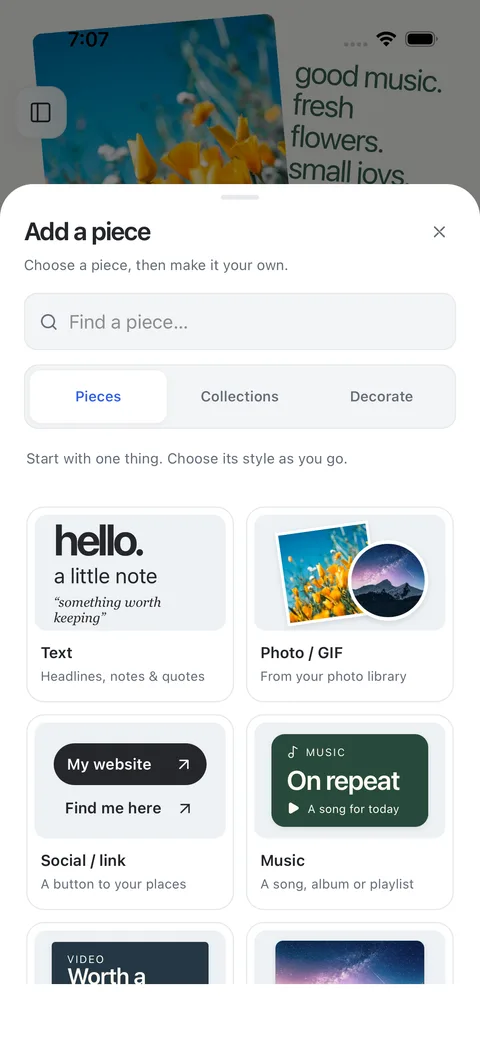
The Yours Add a piece library on iPhone, with text, photo, link and music options.
The Add a piece library in Yours.

From first piece to public link.

Use Yours to make an introduction, a link-in-bio page, a photo collection or a journal. Start small and add what you want to share.

Before you start: you’ll need access to the Yours iPhone beta. Open the app and sign in with Apple, Google or an email code to reach your editor.

  1. Choose your first pieces

    Start with a template or a blank page. Open Add a piece to choose text, a photo or GIF, a link, or music.

    For a simple personal website, begin with an introduction, one photo and the links you want visitors to find.

  2. Arrange your page

    Move the pieces, change the type and choose your colors. Your page can be a compact list of links or a looser collection of images and words.

    Keep the introduction easy to find. Give links clear names so visitors know where each one goes.

  3. Save your work

    The editor saves your working page on your iPhone. Open Menu and look for Saved. A local draft is not a public website.

    To keep a private online copy, open the publishing controls in Menu and choose Save online privately. Connected edits sync while the app is open and online.

    For an editable backup in Files, use Menu → Your library → Backups & recovery → Save backup.

  4. Choose an address and publish

    Open Publish page in Menu. Enter a Link name for an address such as yours.place/your-name.

    Use Check availability, then choose Publish page when you’re ready. An availability check does not reserve a name; publishing does.

    Look for Live to confirm your page is up to date. After publishing, edits to that connected page also update its public address.

  5. Share your link

    Tap your published address, or open Menu → Publish & share → Share & export → Public link.

    Choose Copy link, Share link or QR code. Add the link to a social profile, send it to someone or share your page’s code.

    Visitors open the published page in their browser. They don’t need the Yours app.

These steps describe the current iPhone beta. For older app versions, sync recovery and account help, see Yours support.

A look at Yours.

A short preview of the iPhone editor and example pages.

Press play to watch. The written guide above covers creating, saving and sharing your page.

A few useful details.

Can I make a link-in-bio page in Yours?

Yes. Add a short introduction, then use link pieces for the places you want to share. Publish your page and put its address in your social profile.

Can I keep my page private?

Yes. A local draft or a private online copy stays private. Choose Publish page when you want a public link. To take a live page offline, open its publishing controls and choose Unpublish.

Can I edit without an internet connection?

Once your account’s editor is open, local editing and backup exports work offline. Online saving, publishing, linked images, music and video need a connection.

Do I need to buy a domain?

You can publish at a Yours address such as yours.place/your-name. Connecting a subdomain you own is a separate Yours Plus feature. Domain registration is separate.

Does exporting a page make it public?

No. An image or HTML export does not create a public link. Use the publishing controls in Yours, then share the published address.

Make a little space for yourself.

Yours is currently in iPhone beta. Leave your email to request access.

Request beta access